Enhanced Client Custom Mods
This is a walkthrough for creating custom mods in the Ultima Online Enhanced Client.
While this walkthrough is basic and uses a simple example, from this starting point much more complex mods can be developed.
For this mod we will make a simple edit to a single file, allowing us to select Splintering Weapon %'s in Vendor Search.
To begin creating a mod, locate the UserInterface folder within the Ultima Online Enhanced Client installation directory in your computer's file structure. The directory should be something like
C:>Program Files (x86)>Electronic Arts>Ultima Online Enhanced>UserInterface

Default directory structure

Within this directory structure create a new folder for your custom userinterface. For this example, we will use "MyCustomUI".
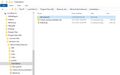
Directory with folder for custom UI

Since we are in the UserInterface folder, unzip Default.zip to somewhere you can work with it. For this walkthrough, a folder on your desktop named "Default" is a good place.

Default.zip unzipped

Within this new Default folder on your desktop are copies of numerous files which control the behavior of the client. It is strongly suggested that you do not alter any of these files while in the Default folder. Instead, copy files you would like to work with from the Default folder into the MyCustomUI folder previously created. Maintain the directory structure from the Default folder. If a file is in Default>Source>ExampleA.Lua, then copy the file to MyCustomUI>Source>ExampleA.lua.
Next, create a Source folder within MyCustomUI
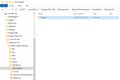
MyCustomUI> Source

Copy the file VendorSearch.lua from Default>Source>VendorSearch.lua into MyCustomUI>Source>VendorSearch.lua

VendorSearch.lua starting location
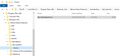
VendorSearch.lua desired location


Open MyCustomUI>Source>VendorSearch.lua in text editor like Notepad, or a Lua IDE like ZeroBrane.

VendorSearch.lua open in ZeroBrane

In function VendorSearch.UpdateButtonsMap(), section VendorSearch.HitAreaButtons, button [15], we will add ", textboxId = 52" to the end of the line. Remember to insert the comma. The unedited code will look like this
[15] = { buttonId = VendorSearch.TotalCriteria + HitSpellOffset + 15, buttonText = "splintering weapon", tid = 1154670};
Our modified code will look like this
[15] = { buttonId = VendorSearch.TotalCriteria + HitSpellOffset + 15, buttonText = "splintering weapon", tid = 1154670, textboxId = 52};

VendorSearch.lua default

VendorSearch.lua modified


With the edit complete and saved, load UO and from the login screen select MyCustomUI from the dropdown menu on the right.

Select MyCustomUI on login

Once logged in, and if you followed the instructions correctly, you should now be able to select Splintering Weapon %'s in Vendor Search.

Default and Modified Behavior

Congratulations, you're a modder!