Difference between revisions of "Enhanced Client Modding"
ArrothThaiel (Talk | contribs) |
ArrothThaiel (Talk | contribs) |
||
| Line 10: | Line 10: | ||
is a file named Custom_UI_Documentaion.zip | is a file named Custom_UI_Documentaion.zip | ||
| − | |||
Once unzipped, this file will produce a hyper-linked document providing instructions on how to modify the Enhanced Client. Open the folder the documentation was unzipped into and double-click "index.html" to load the document. | Once unzipped, this file will produce a hyper-linked document providing instructions on how to modify the Enhanced Client. Open the folder the documentation was unzipped into and double-click "index.html" to load the document. | ||
| + | |||
| + | |||
| + | With the game running, you can make changes to a .lua or .xml file, save the file, and reload your interface from within the game to the see changes you've made. The default key binding to reload the interface is Control+R, but this can be remapped at the bottom of User Settings> Input. | ||
| + | <gallery mode="nolines"> | ||
| + | HotReloadInterface.jpg |Reload Interface key binding | ||
| + | </gallery> | ||
| + | |||
| + | You can also switch entire UI's while the game is running through the User Settings> Options> CustomUI menu. | ||
| + | <gallery mode="nolines"> | ||
| + | HotSwapUI.jpg |Hot Swap your UI | ||
| + | </gallery> | ||
| + | |||
| + | Finally, you can switch languages while the game is running through the User Settings> Options> Language menu. If you are designing in English, especially .xml buttons, non-English languages may run off, or wrap, on the button. Being able to test .xml code definitions and language postions on the fly, without having to exit and reload the entire client, is a nice boon. | ||
| + | <gallery mode="nolines"> | ||
| + | HotSwapLanguage.jpg |Hot Swap your language | ||
| + | </gallery> | ||
| + | |||
==How to== | ==How to== | ||
| Line 18: | Line 34: | ||
* [[Enhanced Client Custom Icons |How to create a custom icon]] | * [[Enhanced Client Custom Icons |How to create a custom icon]] | ||
* [[Enhanced Client Custom Actions |How to create a custom action]] | * [[Enhanced Client Custom Actions |How to create a custom action]] | ||
| + | |||
==Resources== | ==Resources== | ||
Revision as of 12:04, 8 March 2026
The EC is written in the programming language Lua and uses XML to control interface layout. You do not need special software to interact with either .lua or .xml file types. Notepad or another text editor will work just fine. However, some of the graphics files use Direct Draw Surface format and .dds files may not work with all image processing software. GIMP is recommended for image processing as it is both free and can work with .dds files.
Within the client's installation directory, normally something like
This PC> Local Disk (C:)> Program Files (x86)> Electronic Arts> Ultima Online Enhanced> UserInterface
is a file named Custom_UI_Documentaion.zip
Once unzipped, this file will produce a hyper-linked document providing instructions on how to modify the Enhanced Client. Open the folder the documentation was unzipped into and double-click "index.html" to load the document.
With the game running, you can make changes to a .lua or .xml file, save the file, and reload your interface from within the game to the see changes you've made. The default key binding to reload the interface is Control+R, but this can be remapped at the bottom of User Settings> Input.

Reload Interface key binding

You can also switch entire UI's while the game is running through the User Settings> Options> CustomUI menu.
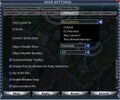
Hot Swap your UI

Finally, you can switch languages while the game is running through the User Settings> Options> Language menu. If you are designing in English, especially .xml buttons, non-English languages may run off, or wrap, on the button. Being able to test .xml code definitions and language postions on the fly, without having to exit and reload the entire client, is a nice boon.
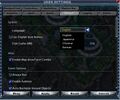
Hot Swap your language

How to
Resources
Color Design
- Color Code Converter Easily switch between Hex RGB and HSL. HTML color names.
- Color Dictionary Hundreds of colors with names and html codes for each hue.
- Stratics Hues Dictionary UO Hue colors and codes
Image Processing Software
- GIMP The GNU Image Manipulator Program - a free crowdsourced version of photoshop. Works with the .dds files used in UO's EC.
- GIMP Tutorial Video Davies Media Design 10 Tips for GIMP Beginners
Software
- Lua homepage The language of the EC.
- ZeroBrane An alternate, and quite good, integrated development environment (IDE) for working with Lua.
- EC SuperViewer Built by Pinco to comb through the EC's art and sound files. Downloaded from Pinco's Discord.
- Mythic Package Editor Built out by Pinco to extract, modify, and reinsert files into the EC's .uop files. Downloaded from Pinco's Discord.
Support